
If you are searching for how to remove text from image, chances are you’ve already run into a common problem—images with unwanted text that you don’t need.
This could be a watermark, logo, subtitle, timestamp, or even random text that makes the image look cluttered. In many cases, you simply want a clean, text-free version of the image for your project.
That’s exactly where this guide comes in. In this article, we will show you how to remove text from image using simple, free, and online tools—no Photoshop, no complex editing skills, and no downloads required.
Whether you're a content creator, designer, or just someone who needs a clean image quickly, this guide will walk you through the easiest ways to remove text from images in just a few steps.
Why You Might Want to Remove Text from Images
Understanding how to remove text from image starts with knowing why you might need it in the first place. There are many practical scenarios where removing text can significantly improve your visuals:
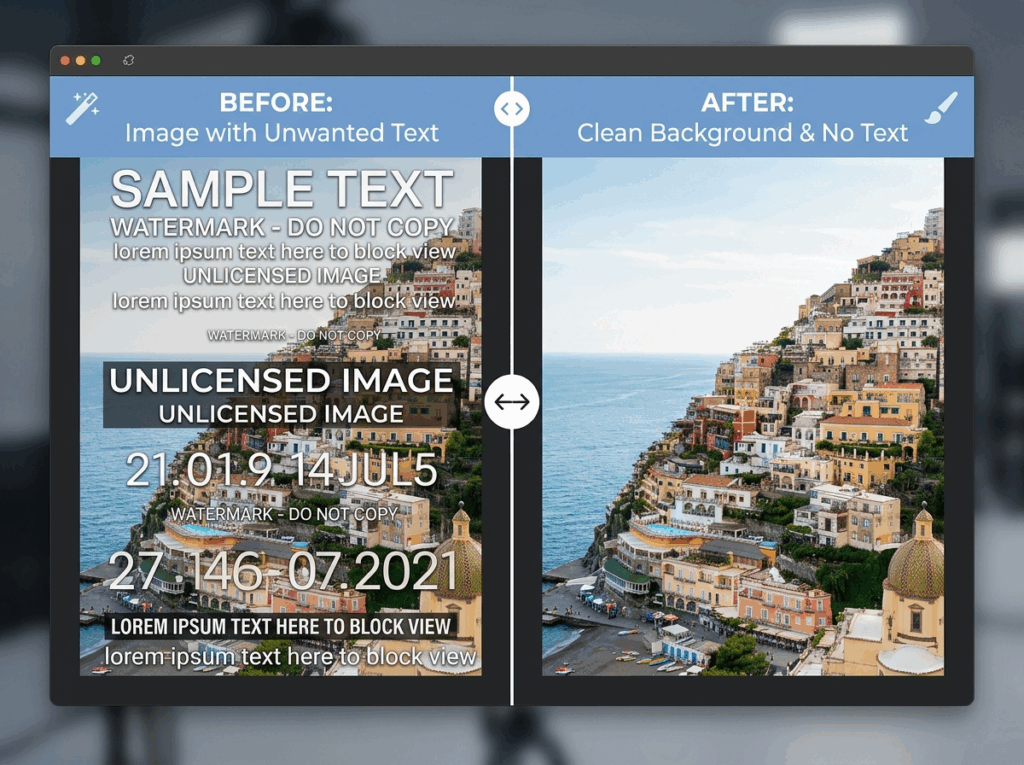
Remove watermarks when you need a cleaner version of an image
Clean screenshots by removing UI elements, captions, or timestamps
Improve visual quality by eliminating distracting text elements
Reuse images without text for presentations, social media, or marketing materials
In all these cases, knowing how to remove text from image allows you to turn a cluttered visual into a clean and professional one.
With modern AI-powered tools, the process of how to remove text from image has become much easier. You can now remove text from images online for free, often with just a single click, making it accessible to everyone—even without editing experience.
The Easiest Way to Remove Text from an Image
If you're wondering how to remove text from image quickly without dealing with complex tools, the easiest solution today is using a free online AI-powered tool.
Traditional software like Photoshop requires manual work, layers, and time. But with modern AI tools, the process of how to remove text from image becomes almost effortless.
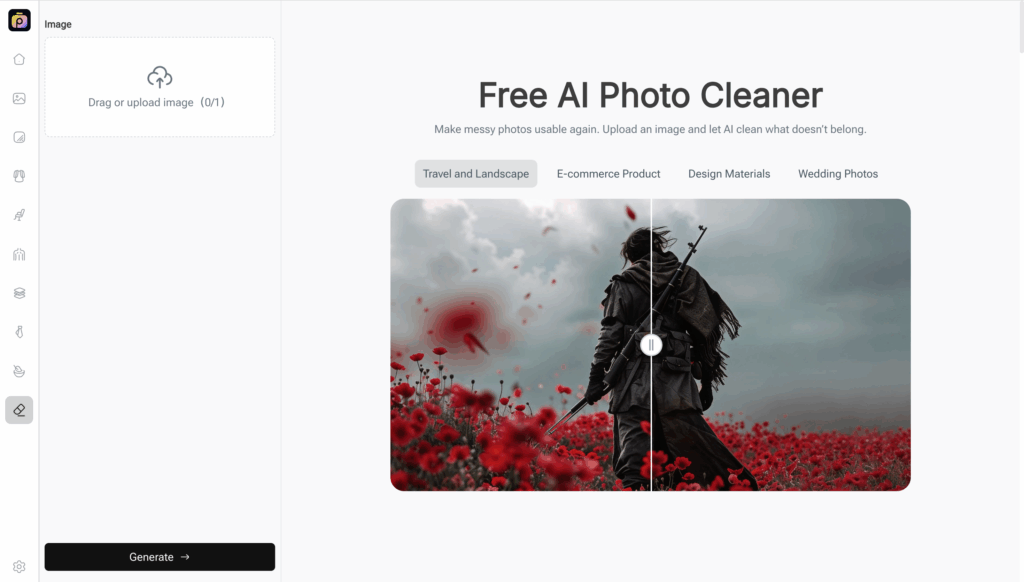
Why Go for an Online AI Tool?
A free online AI photo cleaner gives you everything you need to solve how to remove text from image in seconds:
- No Photoshop needed – Skip complicated editing software
- No download required – Works directly in your browser
- Fast and automatic – AI handles the heavy lifting for you
- Free to use – Ideal for quick and simple edits
This approach is especially useful if you need a fast solution without spending time learning advanced tools.
A Simple and Reliable Option
If you’re looking for a straightforward way to handle how to remove text from image, tools like PhotoGPT’s AI photo cleaner provide a quick and reliable experience.
Instead of manually editing, you can rely on AI to help you remove text and restore a clean background in just moments.
Step-by-Step Guide: How to Remove Text from Image
If you want to quickly learn how to remove text from image, follow this simple step-by-step guide using a free online AI tool like PhotoGPT.
This method is beginner-friendly, requires no editing experience, and delivers clean results in just a few clicks.
Step 1: Upload Your Image
Start by opening the AI photo cleaner tool.
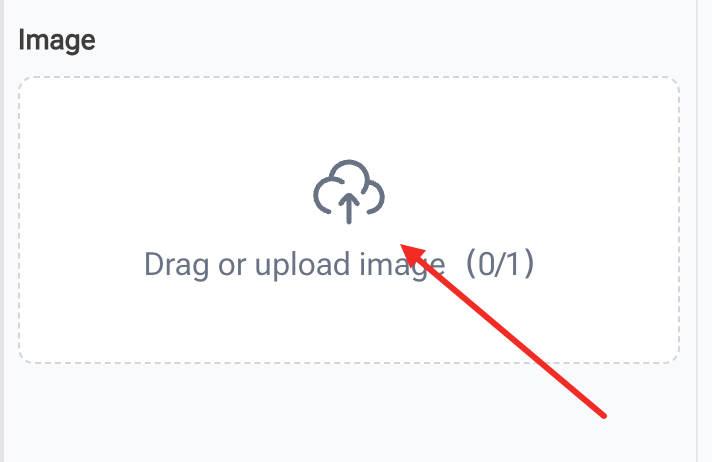
Upload the image that contains the text you want to remove. This could be a watermark, logo, subtitle, or any unwanted text.
👉 Make sure your image is clear and properly loaded for the best results.
Step 2: Select the Text Area
Once your image is uploaded, highlight or brush over the text you want to remove.
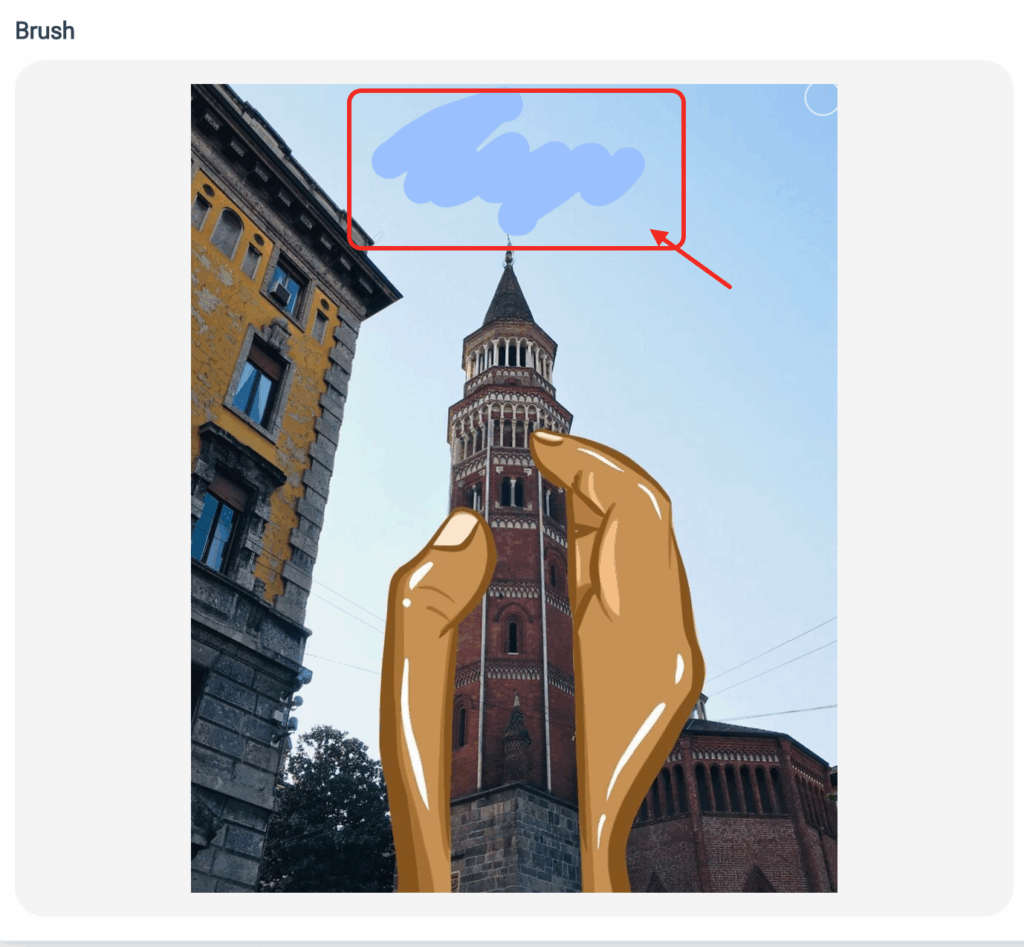
This step helps the AI understand exactly which part of the image should be cleaned. The more precise your selection, the better the result when learning how to remove text from image.
Step 3: Let the AI Work
After marking the text, simply click the remove or process button.
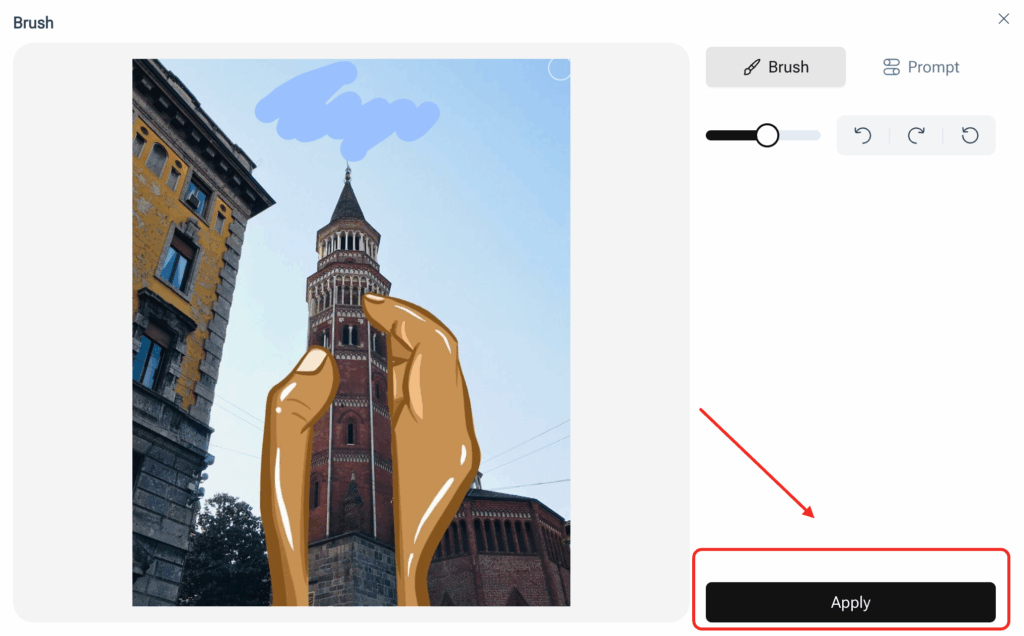
The AI will automatically analyze the image and reconstruct the background where the text used to be. This is the key advantage of using an AI-powered method for how to remove text from image.
No manual editing, no layers, no complicated tools—just AI doing the work for you.
Step 4: Download Your Clean Image
Once the process is complete, preview the result.
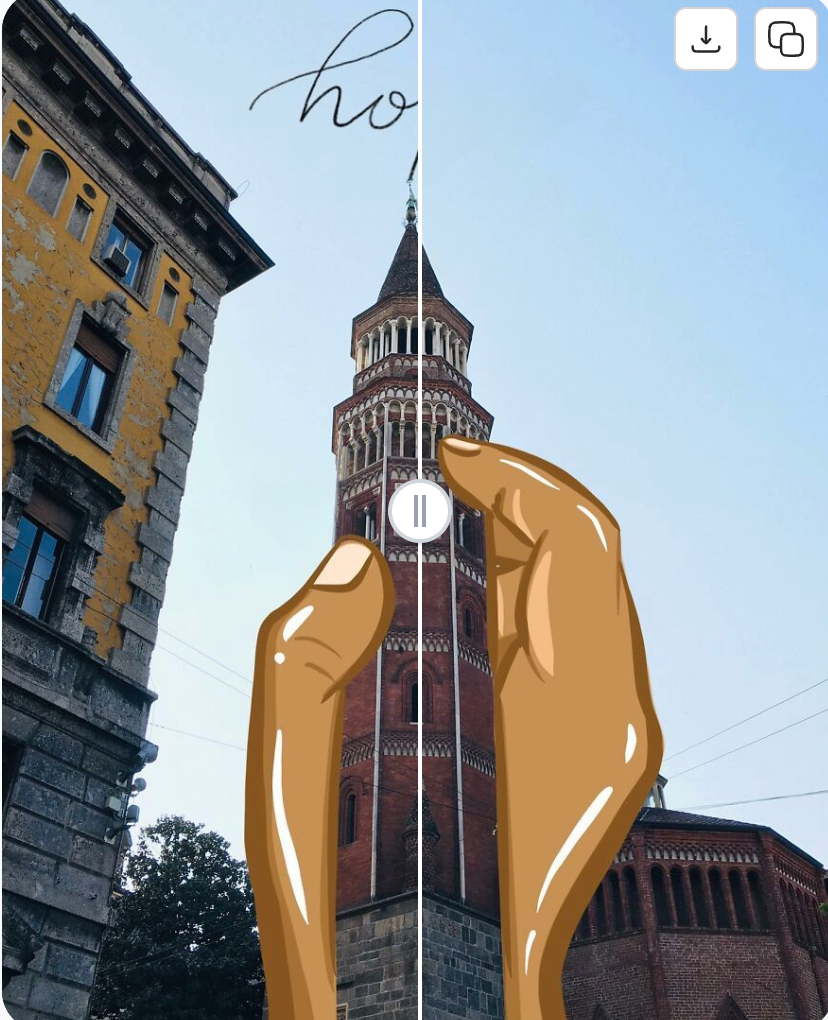
If you’re satisfied, download the clean image without text directly to your device.
That’s it—you’ve successfully learned how to remove text from image in a simple and efficient way.
Using a tool like PhotoGPT makes the process of how to remove text from image:
- Fast and effortless
- Beginner-friendly
- Accurate with AI background reconstruction
- Available online for free
It’s one of the easiest ways to get professional-looking results without needing design skills.
Tips for Better Results
Getting great results when removing text from an image often depends on a few small details. If you apply the right approach, you can significantly improve the quality of the final output.
Start with a high-resolution image
Using a clear, high-quality image makes a noticeable difference.
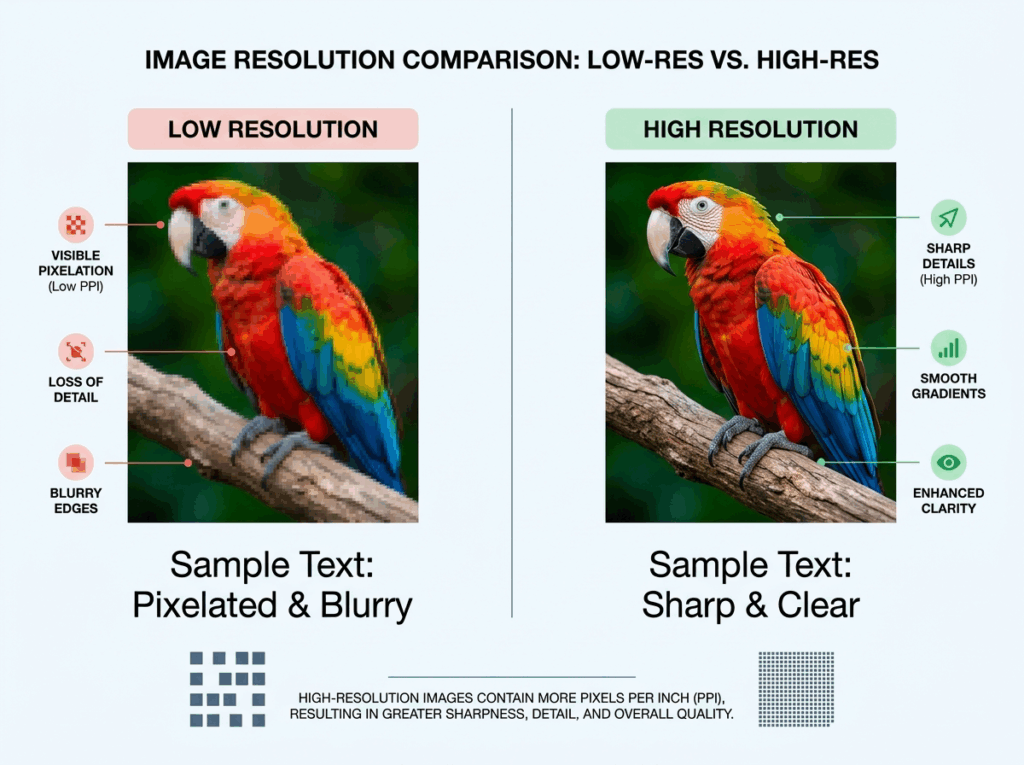
For example, if you try to clean up a high-resolution photo of a product with a watermark, the AI will have more visual information to reconstruct the background accurately. On the other hand, a low-resolution or heavily compressed image may result in blurry or uneven edits.
👉 Tip: If possible, always upload the original image instead of a compressed version from social media.
Select only the text area carefully
One of the most important steps is selecting the right area.
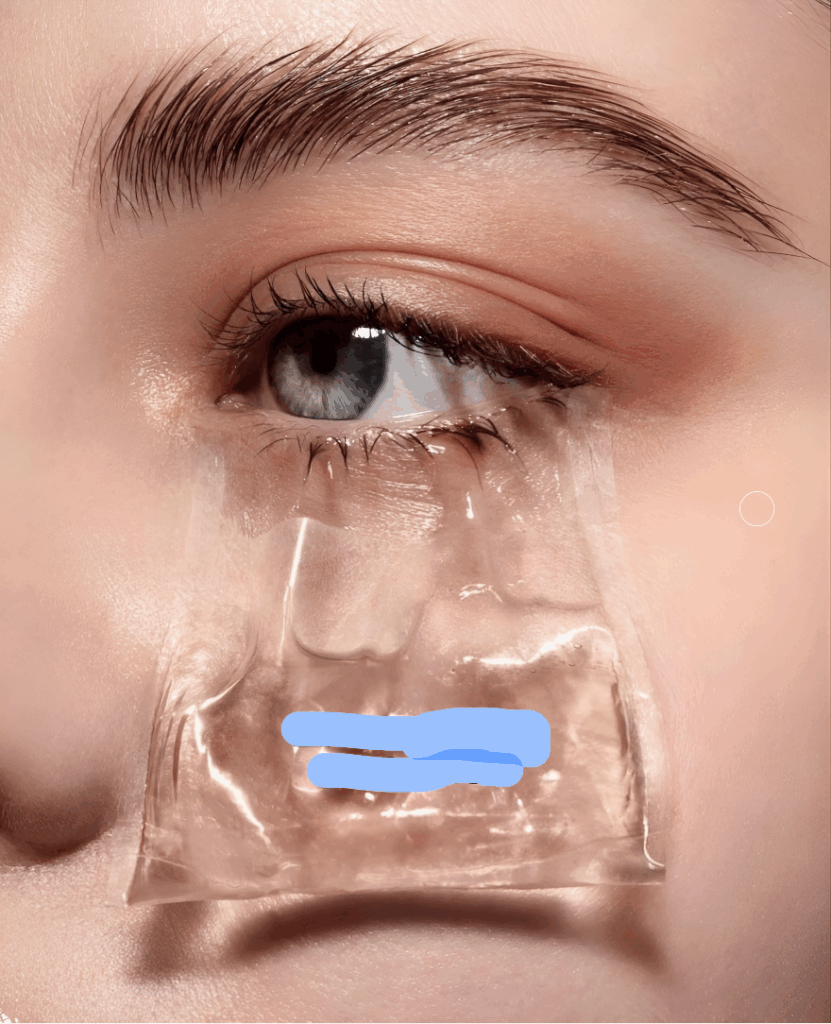
For example, if you’re removing a logo from a sky background, you should only highlight the logo—not the entire sky around it. This allows the AI to focus precisely on the unwanted text and rebuild the surrounding pixels more naturally.
If you select too much, the result may look inconsistent. If you select too little, parts of the text might remain visible.
👉 A good rule: keep your selection tight and focused.
Use simple backgrounds for best results
Images with simple or uniform backgrounds tend to work best.
For example:
- A white background with text → usually very clean results
- A blue sky with a watermark → also works well
- A busy city scene with lots of details → may require more refinement
If your image has repeating patterns or complex textures, the AI may need a second pass to fully remove the text seamlessly.
Try multiple passes if needed
Sometimes, the first result isn’t perfect—and that’s completely normal.
For example, if you remove text from a product image and notice slight inconsistencies in the background, you can:
- Try multiple passes if
- Adjust the selection slightly
- Run the process again
- Or refine specific areas separately
This iterative approach helps you achieve a cleaner and more natural-looking result.
Preview before downloading
Always take a moment to review the final image before downloading.
For instance, check:
- Whether any text fragments remain
- If the background looks natural
- Whether edges or textures appear smooth
A quick review ensures the final result looks polished and ready to use.
Common Use Cases
There are many real-world situations where removing text from images becomes incredibly useful. Below are some common examples where this technique can save time and improve your visuals.
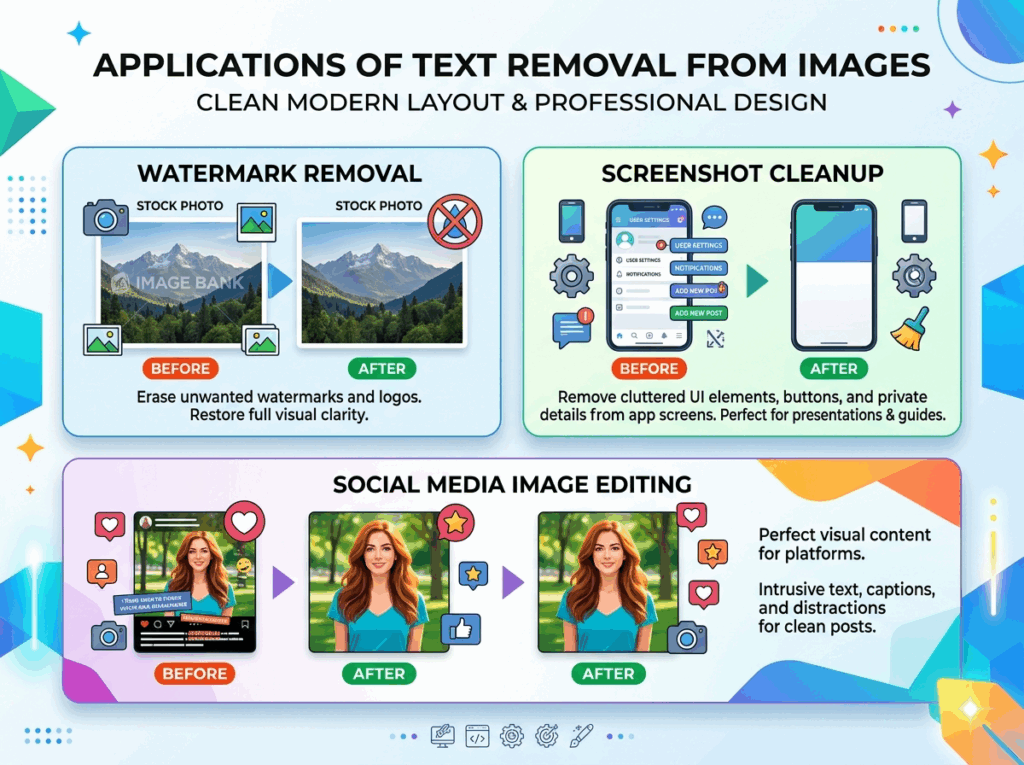
Removing watermarks from stock images
Watermarks are often added to protect images, but they can be distracting when you need a clean version.
For example:
- A product image with a watermark across the center
- A stock photo with a faint overlay logo
By removing the watermark, you can create a cleaner version suitable for presentations, mockups, or personal projects.
Cleaning up screenshots
Screenshots often contain unnecessary information that you may not want to include.
For example:
- Removing timestamps from a screenshot
- Cleaning up notifications or UI elements
- Erasing usernames or sensitive information
This is especially useful when preparing documentation, tutorials, or sharing visual guides.
Improving social media visuals
Visual content plays a big role in engagement on social media platforms.
For example:
- Removing text overlays from images before reposting
- Cleaning up graphics for Instagram or TikTok
- Making visuals look more minimal and polishedCleaner images tend to look more professional and can help improve overall engagement.Reusing images in design projectsSometimes you find the perfect image, but it contains text that doesn’t fit your design.For example:
- A banner image with promotional text that doesn’t match your branding
- A background image with unwanted captionsBy removing the text, you can reuse the image in your own designs, saving time and effort.Creating clean presentation visualsIn presentations, simplicity and clarity are key.For example:
- Removing labels or annotations from charts
- Cleaning up background images used in slides
- Eliminating distractions from visual assets
This helps your audience focus on the key message instead of unnecessary details.

FAQs about Remove Text from Image
Is there a free way to remove text from images?
Yes, there are free online tools that allow you to remove text from images without any cost. Many AI-powered tools make it easy to clean up images directly in your browser without needing software like Photoshop. These tools are designed to help users quickly understand how to remove text from image using a simple and accessible process.
Can I remove text from an image without Photoshop?
Absolutely. You don’t need Photoshop or any advanced editing software. Modern AI tools can automatically detect and remove unwanted text while rebuilding the background, making the process much faster and easier compared to manual editing.
Will the image still look natural after removing text?
In most cases, yes—especially when using a high-quality image and a good AI tool.
The result depends on factors like image quality, background complexity, and how accurately the text area is selected. For simple backgrounds, the results are usually very clean and natural.
Can I remove watermarks from images?
Technically, it is possible to remove watermarks using AI tools, but you should always respect copyright and usage rights. If you are using images for personal, licensed, or properly authorized purposes, then removing unwanted text or marks can be helpful.
Is it safe to use online tools for image editing?
Yes, most reputable online tools are safe to use. However, it’s always a good idea to choose trusted platforms that prioritize user privacy and do not store or misuse your uploaded images.
Conclusion
Learning how to remove text from image no longer requires complex software or advanced editing skills. With the help of modern AI tools, the process has become faster, simpler, and accessible to everyone.
Whether you need to clean up screenshots, remove watermarks, or improve visual content, using a free online solution is one of the easiest ways to get clean and professional results.
Instead of spending time on manual editing, you can rely on AI to handle the hard work for you—saving time while still achieving high-quality output.
If you’re looking for a quick and reliable way to try this yourself, you can use PhotoGPT’s AI photo cleaner to remove text from images in just a few seconds.
👉 Start now and experience how easy it can be to clean your images online—completely free.